How to use Canva – Canva Basics

Canva is a versatile and user-friendly graphic design tool that allows users to create a wide range of visual content, from social media posts to presentations, flyers, posters, and more. Here’s a detailed guide on how to use Canva:
Getting Started
Sign Up/Log In:
Visit Canva.
Sign up for a free account using your email, Google account, or Facebook account.
If you already have an account, simply log in.
Navigating the Dashboard
Dashboard Overview:
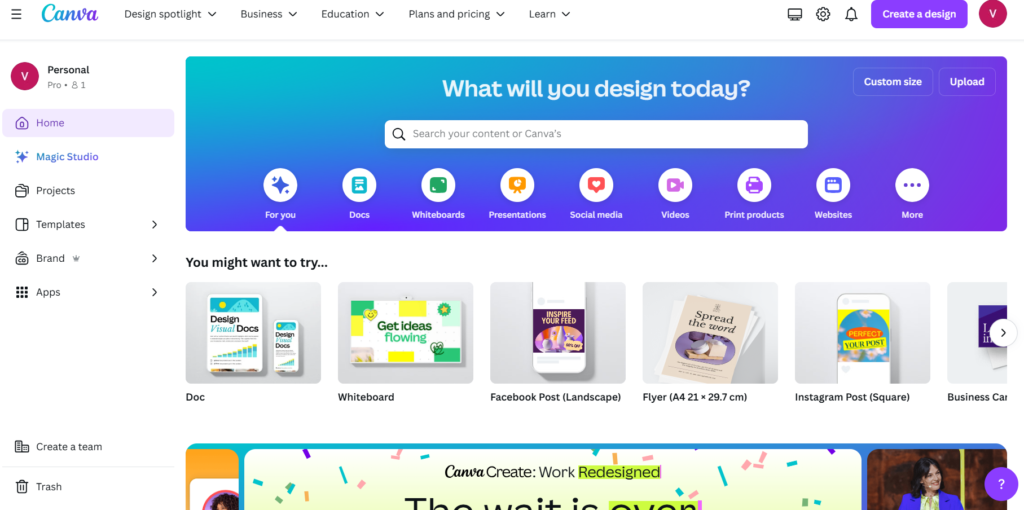
After logging in, you’ll land on the dashboard. Here, you can access your designs, templates, and other Canva tools.
The left sidebar includes options like “All your designs,” “Templates,” “Photos,” “Apps,” and more.
The main area displays your recent designs and recommended templates.
Creating a Design
Choosing a Template:
Click on the “Create a design” button in the top right corner.
Select the type of design you want to create (e.g., Instagram Post, Presentation, Flyer).
You can also search for a specific template by typing keywords in the search bar.
Customizing Your Design:
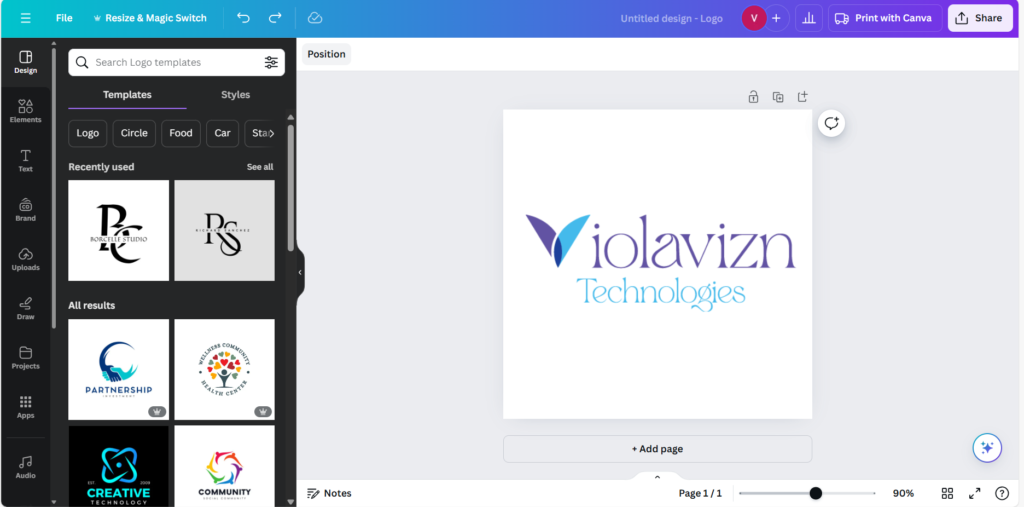
Canvas: Once you select a template, the canvas will open. Here, you can customize your design.
Elements Panel: On the left, you’ll find various tools:
Templates: Pre-designed layouts for your selected design type.
Elements: Shapes, lines, illustrations, icons, and more.
Uploads: Upload your own images, videos, and audio files.
Photos: Stock photos you can use in your design.
Text: Add text boxes with different font styles.
Styles: Color palettes and font sets.
Background: Set a background color or image.
More: Access additional tools and integrations.
Editing Your Design
Working with Elements:
Drag and Drop: Drag elements from the left panel to your canvas.
Resize and Rotate: Click on an element to resize (drag corners) or rotate (click and drag the rotate handle).
Positioning: Move elements by clicking and dragging them around the canvas. Use alignment guides for precise placement.
Text Editing:
Click on a text box to edit the text.
Use the toolbar at the top to change font style, size, color, alignment, spacing, and effects.
Add new text boxes by selecting “Text” from the left panel and choosing a text style.
Images and Backgrounds:
Upload your own images via the “Uploads” tab or use stock images from the “Photos” tab.
To set a background image, drag it to the canvas and right-click to select “Set image as background.”
Adjust image settings like brightness, contrast, saturation, and apply filters using the toolbar at the top.
Advanced Features
Using Layers:
Canva allows you to layer elements. Right-click an element to bring it forward or send it backward.
Use the “Position” tool in the toolbar to align and arrange elements.
Group and Ungroup Elements:
Select multiple elements by holding the Shift key and clicking on them.
Right-click and choose “Group” to group elements together. Ungroup by right-clicking and selecting “Ungroup.”
Adding Effects and Animations:
Select an element and click “Effects” in the toolbar to add shadows, glows, and other effects.
For animated designs, click “Animate” in the toolbar to apply animations to your elements.
Saving and Exporting
Saving Your Design:
Canva saves your work automatically.
You can also manually save by clicking “File” > “Save.”
Downloading and Sharing:
Click the “Share” button in the top right corner to download your design.
Choose your file type (PNG, JPG, PDF, etc.) and quality.
You can also share your design directly via email, link, or social media.
Collaboration and Integration
Collaborating with Others:
Invite others to edit or view your design by clicking “Share” and entering their email addresses.
Assign roles (can edit, can view) to control access.
Integrating with Other Tools:
Canva integrates with various apps and services like Google Drive, Dropbox, and social media platforms.
Access integrations via the “More” tab in the left panel.
Tips and Tricks
Keyboard Shortcuts:
Familiarize yourself with Canva’s keyboard shortcuts for faster design work. For example, Ctrl/Cmd + C to copy, Ctrl/Cmd + V to paste, and Ctrl/Cmd + Z to undo.
Brand Kit:
If you have a Canva Pro account, you can create a Brand Kit to save your brand colors, logos, and fonts for easy access in all your designs.
By following these steps and exploring Canva’s extensive features, you can create professional-quality designs with ease.